




Ads

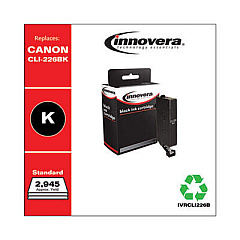
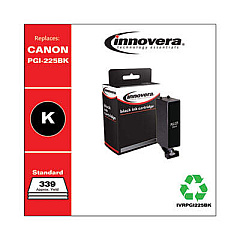
Canon PIXMA MG5320 Black Ink Cartridges

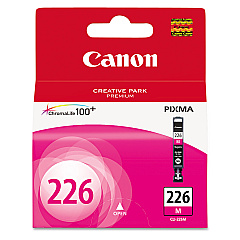
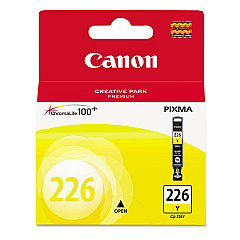
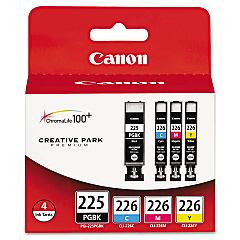
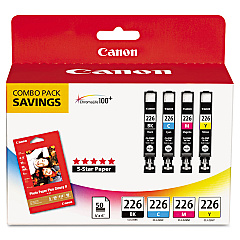
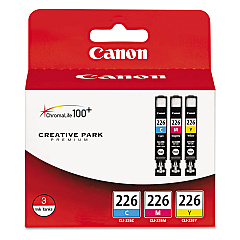
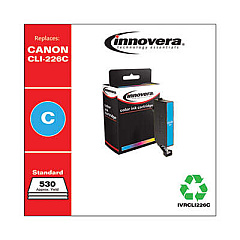
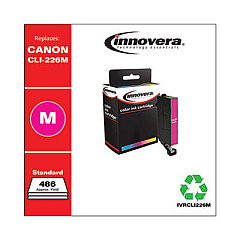
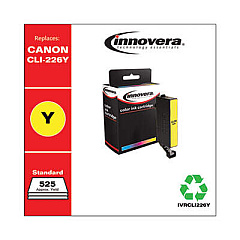
Canon PIXMA MG5320 Color Ink Cartridges

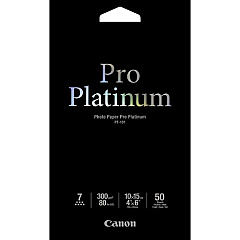
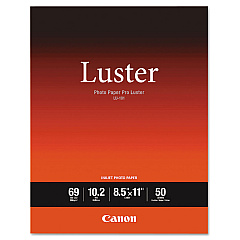
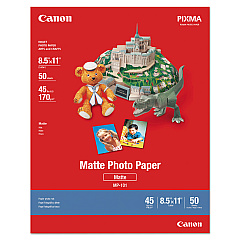
Canon PIXMA MG5320 Photo Paper

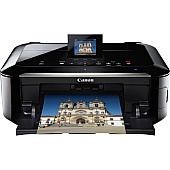
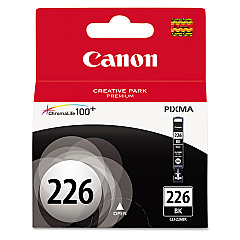
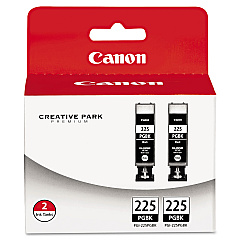
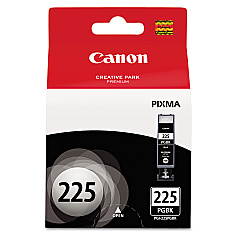
Enhance your printing experience with genuine Canon PIXMA MG5320 Ink Cartridges. This versatile printer utilizes a range of high-quality ink options, including the Canon CLI-226 series in black, cyan, magenta, and yellow, as well as convenient combo packs. For crisp text and professional documents, the Canon PGI-225 Pigment Black Ink Tank delivers exceptional results. Whether you're printing photos, reports, or everyday documents, these cartridges ensure vibrant colors and sharp details. The Canon PIXMA MG5320 Ink Cartridges are designed to work seamlessly with your printer, providing consistent performance and long-lasting prints. With options like the CLI-226 Color Ink 3-Pack and the PGI-225 CLI-226 4-Pack, you can stock up on your most-used colors and save money. Trust in Canon's superior ink technology to bring your ideas to life with stunning clarity and precision.

Canon PIXMA MG5320 Ink Cartridges FAQs

  • How long do Canon PIXMA MG5320 Ink Cartridges typically last?

    The lifespan of ink cartridges varies depending on usage, but on average, they can last for 200-300 pages for color cartridges and 300-400 pages for black cartridges.

  • Are these ink cartridges compatible with other Canon printers?

    While these cartridges are designed specifically for the Canon PIXMA MG5320, they may be compatible with other Canon printer models. Always check your printer's manual for compatibility.

  • Can I use third-party ink cartridges in my Canon PIXMA MG5320?

    While third-party cartridges may work, using genuine Canon ink cartridges ensures the best print quality and helps maintain your printer's warranty.

  • What's the difference between PGI and CLI ink cartridges?

    PGI (Pigment) cartridges are typically used for text and contain black ink, while CLI (Chromalife) cartridges are used for color printing and photos.

  • How do I install new ink cartridges in my Canon PIXMA MG5320?

    Open the printer's front cover, wait for the cartridge holder to move to the center, remove the old cartridge, insert the new one until it clicks, and close the cover.

  • Can I recycle my used Canon ink cartridges?

    Yes, Canon offers a recycling program for used ink cartridges. You can return them to Canon or participating retailers for proper recycling.

  • How can I tell if my ink cartridge is running low?

    Your printer's software will typically alert you when ink levels are low. You can also check ink levels through the printer's control panel or your computer's printer settings.

  • What should I do if my printer doesn't recognize a new ink cartridge?

    Try removing and reinserting the cartridge, cleaning the cartridge contacts, or running a printer head alignment. If issues persist, contact Canon support.

  • Is it necessary to replace all ink cartridges at the same time?

    No, you only need to replace the cartridge that's empty. However, it's a good idea to have spares of all colors on hand.

  • How should I store unused ink cartridges?

    Store unused cartridges in a cool, dry place in their original packaging. Avoid extreme temperatures and direct sunlight to maintain ink quality.

Warehouse Locations

Policy & Agreement | Copyright © 1995-2026 BlueDogInk.com